
Goal
Compare entered seated and standing elbow heights with task offsets and desk adjustment ranges without claiming one universal ergonomic height.
Worldwide context
Saved once here, used across the site.
Currency changes display only. Country selection guides tax input; no tax rate is guessed.
Compare entered seated and standing elbow heights with task offsets and desk adjustment ranges without claiming one universal ergonomic height.
Seated target = seated elbow height + seated task offset; standing target = standing elbow height + standing task offset; a target fits when it lies between the corresponding entered minimum and maximum; required travel = |standing target − seated target|.A clearer path to an answer
This page keeps the calculation transparent: define the goal, enter the matching values, inspect the method, and decide what the result means in your situation.
Compare entered seated and standing elbow heights with task offsets and desk adjustment ranges without claiming one universal ergonomic height.
Seated elbow height · Standing elbow height · Seated task offset from elbow · Standing task offset from elbow · Seated adjustment minimum · Seated adjustment maximum · Standing adjustment minimum · Standing adjustment maximum
Seated target = seated elbow height + seated task offset; standing target = standing elbow height + standing task offset; a target fits when it lies between the corresponding entered minimum and maximum; required travel = |standing target − seated target|.
Calculate, review the assumptions below, then compare a related tool when the decision needs more context.
Compare entered seated and standing elbow heights with task offsets and desk adjustment ranges without claiming one universal ergonomic height.
Open the Desk Height Fit Calculator pageMore utility tools
Download PDFDownload Word (.doc)
Enter your values above and choose Calculate to see the result here.
Calculation map
Seated target = seated elbow height + seated task offset; standing target = standing elbow height + standing task offset; a target fits when it lies between the corresponding entered minimum and maximum; required travel = |standing target − seated target|.
Bounded, transparent calculation
Your recent runs stay in this browser session only.
Formula: Seated target = seated elbow height + seated task offset; standing target = standing elbow height + standing task offset; a target fits when it lies between the corresponding entered minimum and maximum; required travel = |standing target − seated target|.
Work height depends on the person, task, keyboard or tool position, chair, footwear, and posture. This page therefore calculates a fit check from measurements supplied by the visitor. It uses the elbow-height relationship described in workstation guidance but leaves task offsets and adjustment ranges editable instead of presenting a universal desk recommendation.
Worked example: The seated target is 26 and fits the entered seated range; the standing target is 42 and fits the entered standing range; required travel is 16 length units.
The displayed limits are checked before the handler runs. Model-specific domain checks may also reject impossible or non-finite inputs.
Methodology: This calculator follows the WorldCalculate input, formula, precision, and boundary policy. Read the official methodology.
Calculator usage statistics
This section counts anonymous successful Calculate submissions, not unique visitors. Counts and top tools appear only when trusted aggregate data is available; country analysis is shown only under the same condition and reporting threshold.
Answer-first guide
Compare entered seated and standing elbow heights with task offsets and desk adjustment ranges without claiming one universal ergonomic height. Start with one clearly defined goal, enter values in the units shown, and keep the result attached to the assumptions below.
This tool is useful when your question includes desk height calculator, ergonomic desk height, standing desk height. It returns the outputs declared in the calculator contract rather than a live quote, approval, diagnosis, or professional sign-off.
Seated elbow height · Standing elbow height · Seated task offset from elbow · Standing task offset from elbow · Seated adjustment minimum · Seated adjustment maximum · Standing adjustment minimum · Standing adjustment maximum. Keep the same time period, unit system, and currency wherever the form requires comparable values.
Run the worked example first, compare its output with the page's example, then change one input at a time. This makes an unexpected result easier to trace to a unit, boundary, or assumption.
Need a wider view? Browse Everyday Utility Calculators or compare the related tools below. The WorldCalculate methodology explains how formulas, examples, limits, and revisions are reviewed.
Seated target = seated elbow height + seated task offset; standing target = standing elbow height + standing task offset; a target fits when it lies between the corresponding entered minimum and maximum; required travel = |standing target − seated target|.
Work height depends on the person, task, keyboard or tool position, chair, footwear, and posture. This page therefore calculates a fit check from measurements supplied by the visitor. It uses the elbow-height relationship described in workstation guidance but leaves task offsets and adjustment ranges editable instead of presenting a universal desk recommendation.
The seated target is 26 and fits the entered seated range; the standing target is 42 and fits the entered standing range; required travel is 16 length units.
Context and background
Everyday tools turn a measured quantity, a rate, or a simple ratio into a practical estimate while leaving live prices, routes, and local rules to the visitor.
Practical calculators are small applied models. Their value is that a person can inspect an assumption, change it, and see how the decision changes without mistaking the result for a promise.
Calculator guide
This guide is prepared from the published calculator contract so the formula, inputs, example, assumptions, limits, and next actions remain aligned with the live tool. It is a planning and learning aid, not a substitute for a professional, legal, medical, financial, safety, or official decision.
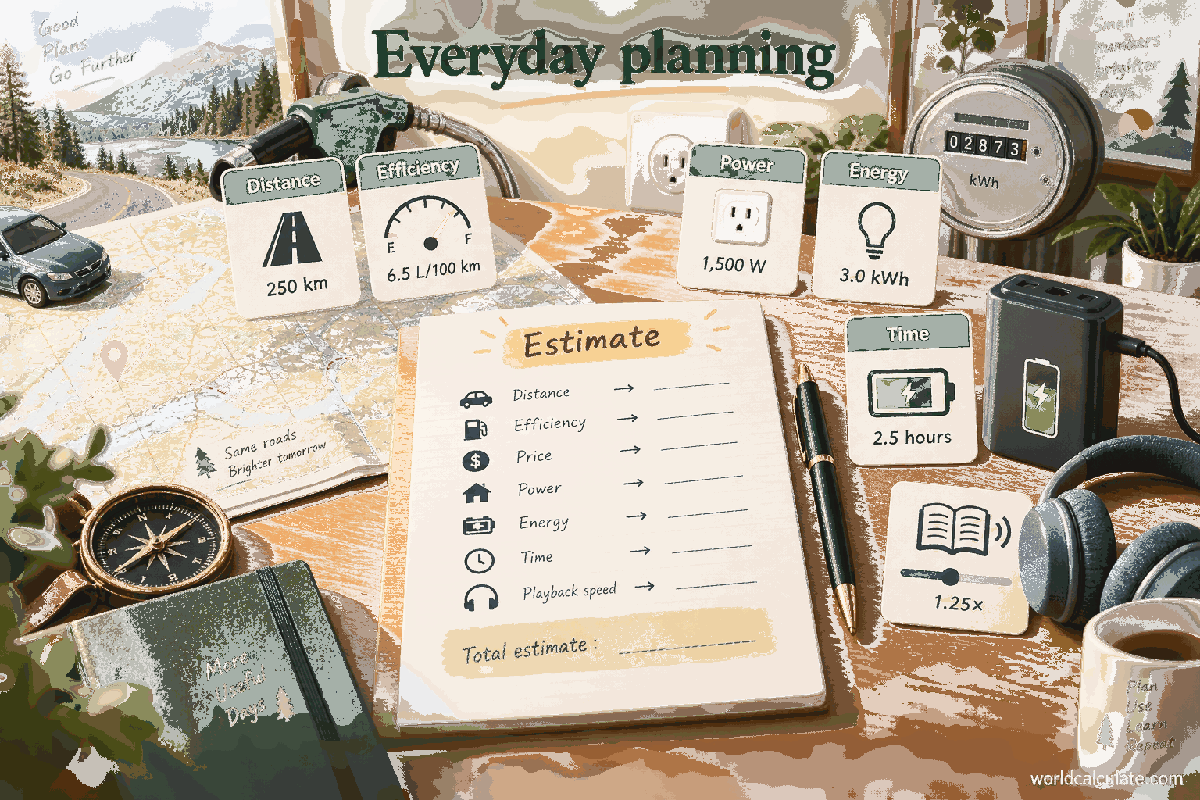
Short answer: This practical guide explains how the Desk Height Fit Calculator turns the values you enter into a transparent result, how to check the units and formula, and when a related tool or authoritative source is needed.
Picture an ordinary decision with a deadline: a short worksheet that names the quantity, unit, period, and next action can be more useful than a confident guess.
By the end, you should be able to define the question, prepare the inputs, run the Desk Height Fit Calculator, and explain what the result means in the real situation. The goal is a checkable decision record—not a number detached from its units, date, assumptions, and limits.
People usually arrive at this guide with a practical question, not a desire to see an isolated number. For this everyday utility planning problem, write the decision in one sentence: what must be compared, planned, checked, or learned, and by when? Then write what a useful answer would change. If the result will not change a choice, the measurement or model may need to be simplified.
The Desk Height Fit Calculator is designed for a defined scenario. It uses Seated elbow height, Standing elbow height, Seated task offset from elbow, Standing task offset from elbow, Seated adjustment minimum, Seated adjustment maximum, Standing adjustment minimum, Standing adjustment maximum and returns the output stated in its contract. That makes the result reproducible, but it also means the answer is limited to the facts you enter. A calculator cannot fill an unknown value with a reliable guess simply because a search result sounds confident.
Make a small input worksheet with four columns: field name, value, unit or convention, and evidence or reason. The fields in this calculator are Seated elbow height, Standing elbow height, Seated task offset from elbow, Standing task offset from elbow, Seated adjustment minimum, Seated adjustment maximum, Standing adjustment minimum, Standing adjustment maximum. If a field has a hint or range, treat that text as part of the contract rather than as optional decoration. A value can be numerically valid and still be unsuitable if it describes the wrong period, person, surface, or denominator.
Use one source of truth for repeated values. For example, do not enter an annual total in one field and a monthly amount in another unless the formula explicitly expects that relationship. Keep full precision during intermediate work, record when a value was rounded, and do not hide a conversion inside an unlabeled number. When a value is estimated, label it as an estimate and create a conservative alternative.
Before pressing Calculate, read the form from top to bottom. Check sign, scale, percentage convention, starting point, endpoint, and whether a field is a total, rate, balance, quantity, or count. These checks make an answer easier to reproduce for a student, household member, client, teammate, or reviewer.
The declared formula is Seated target = seated elbow height + seated task offset; standing target = standing elbow height + standing task offset; a target fits when it lies between the corresponding entered minimum and maximum; required travel = |standing target − seated target|.. Read it as a sequence, not as a black box: identify the inputs, apply any conversion or normalization, perform the operation, and interpret the output in the requested unit. If the formula includes a rate or percentage, write its period beside it before substituting values.
The built-in example is a controlled test because it uses known values. Its input record is:
| Field | Example value |
|---|---|
| SeatedElbowHeight | 26 |
| StandingElbowHeight | 42 |
| SeatedOffset | 0 |
| StandingOffset | 0 |
| SeatedMin | 22 |
| SeatedMax | 30 |
| StandingMin | 36 |
| StandingMax | 46.5 |
Expected example interpretation: The seated target is 26 and fits the entered seated range; the standing target is 42 and fits the entered standing range; required travel is 16 length units. Compare the live result with this statement, then change only one input. If the example does not match, check the calculator version, field units, rounding, and copied value before building a personal scenario.
A good walkthrough explains what each operation means in the real problem. It also explains what the result does not mean. Keep the formula and the plain-language interpretation together when you export, cite, or discuss the calculation.
One scenario answers “what happens if these assumptions hold?” A decision usually needs at least three: a base case using the best-supported inputs, a conservative case that reflects an unfavorable but plausible change, and a decision case that represents the action you are considering. Keep all unchanged inputs identical so the difference has a clear cause.
| Case | Purpose | Change one named assumption |
|---|---|---|
| Base | Best current description of the question | Use the dated values you can support |
| Conservative | Test a less favorable outcome | Change rate, cost, quantity, time, capacity, or measurement with a reason |
| Decision | Test the action or target | Change the input that the decision can actually control |
Compare both the output and the changed assumption. A larger answer is not automatically better, and a smaller answer is not automatically safer. Ask whether the change is realistic, whether it creates a second-order cost, and whether another calculator or professional source is needed. Save the scenario name with the result so a later reader does not confuse a stress test with a forecast.
Turn the everyday question into a clearly named quantity, unit, time period, and endpoint. Write down what is known, what is estimated, and what the result is meant to help you decide. This simple separation prevents a calculator output from being mistaken for an invoice, official schedule, or guaranteed capacity.
Everyday estimates depend on local prices, policies, weather, products, and personal circumstances that may not be modeled. Check current documents and the provider’s terms when money, safety, travel, or a deadline depends on the answer.
Use the result to compare a baseline with one practical change: a different amount, frequency, route, portion, duration, or purchase size. Keep convenience and reliability visible alongside the numerical saving. The best option is usually the one that can be repeated without creating a larger hidden cost.
To test a saving honestly, record the baseline result, the changed input, the new result, and the cost of implementing the change. Do not count a saving twice by reducing two fields that represent the same action. If the tool does not model a fee, quality change, delay, risk, or opportunity cost, keep that item in the written decision note rather than implying it disappeared.
Small improvements become useful when they are repeatable. Set a review date, decide what evidence will show whether the assumption was right, and rerun the same scenario when the underlying value changes. A saved calculation is a decision record, not a promise that the world will keep the same inputs.
When the answer looks surprising, do not immediately change the formula. Recheck the problem in this order: field label, unit, time period, sign, percentage convention, denominator, starting value, endpoint, rounding, and model boundary. Then rerun the built-in example. If the example is correct but the personal result is not useful, the issue is probably the scenario definition rather than the arithmetic.
Use the declared assumptions as a diagnostic list:
Report a possible correction with the calculator name, every input and unit, the displayed result, the expected result, and the exact step where the interpretation differs. That evidence is more actionable than saying that a number “looks wrong.”
This tool can support:
Common questions include:
For shared work, send the question, inputs, units, scenario name, result, formula, assumptions, and date together. For learning, explain the substitution before the final answer. For a material decision, add the authoritative document or professional review that sits outside the calculator.
A durable record has a descriptive scenario title, the question it answers, the values entered, units and conventions, the formula or method, the displayed result, the date, and the next action. Include the version or page path when a calculation may be rerun later. If a value came from a quote, label, measurement, gradebook, training log, or experiment, keep that evidence with the record.
Review the record when an input changes, when the decision becomes more important, or when the result will be reused for another person. Do not silently edit an old result. Duplicate the scenario, change one assumption, and explain why the new answer differs. This creates an audit trail and makes the page useful beyond the first visit.
WorldCalculate keeps formulas, examples, assumptions, and boundaries visible so readers can learn the method. The final responsibility still belongs to the person, institution, professional, or authority that owns the decision.
If these checks pass, open the Desk Height Fit Calculator and run the scenario with your own values. Use a related tool only when it answers a clearly different part of the same problem.
Compare entered seated and standing elbow heights with task offsets and desk adjustment ranges without claiming one universal ergonomic height.
This guide connects the real problem in “Desk Height Fit Calculator” to the exact contract of the Desk Height Fit Calculator. Start with the question, then choose inputs that represent the same person, project, period, and unit system. A precise number cannot repair an input that describes a different situation.
Before calculating, read every label and hint. Keep annual, monthly, daily, per-serving, per-unit, and percentage values in the period expected by the field. If a field represents a rate, record the rate convention; if it represents a total, do not enter a balance or a per-unit value by accident.
Published formula: Seated target = seated elbow height + seated task offset; standing target = standing elbow height + standing task offset; a target fits when it lies between the corresponding entered minimum and maximum; required travel = |standing target − seated target|.
Work height depends on the person, task, keyboard or tool position, chair, footwear, and posture. This page therefore calculates a fit check from measurements supplied by the visitor. It uses the elbow-height relationship described in workstation guidance but leaves task offsets and adjustment ranges editable instead of presenting a universal desk recommendation.
The useful review question is not only “what number appeared?” It is “what does this number represent, which inputs produced it, and which important facts are outside the model?” Keep the formula, units, rounding, and assumptions beside any result you save or share.
Run the built-in example first so the article and the live calculator can be compared. The supplied example inputs are:
Expected contract result: The seated target is 26 and fits the entered seated range; the standing target is 42 and fits the entered standing range; required travel is 16 length units.
After the example matches, change one input at a time. That isolates what moves the answer and gives you a simple sanity check. If the output changes in a way the formula does not explain, stop and inspect the units, sign, endpoint, rate, denominator, or chosen calculator.
Build a base case, a conservative case, and a decision case. Keep the unchanged inputs identical and name the one change: a different rate, target, quantity, time horizon, distance, cost, workload, or measurement. Record both the result and the assumption that changed. This makes the tool useful for learning and planning rather than turning one output into a promise.
Use the result to choose a next question. A home estimate may need a budget and debt view; a recipe quantity may need a pan or cooking check; a health estimate may need personal context; a statistical result may need a design or sampling check; a construction quantity may need product coverage and site measurement. The related tools below are deliberately connected by topic.
The calculator’s declared assumptions are part of the answer:
Do not add facts the calculator does not collect. WorldCalculate does not silently know a lender’s approval policy, a country’s tax rule, a person’s diagnosis, a product’s live price, a school’s grading policy, a weather station, or a construction site. Replace planning assumptions with authoritative documents or qualified advice when the decision is regulated, safety-critical, medical, legal, or financially material.
Compare entered seated and standing elbow heights with task offsets and desk adjustment ranges without claiming one universal ergonomic height.
Seated target = seated elbow height + seated task offset; standing target = standing elbow height + standing task offset; a target fits when it lies between the corresponding entered minimum and maximum; required travel = |standing target − seated target|. Work height depends on the person, task, keyboard or tool position, chair, footwear, and posture. This page therefore calculates a fit check from measurements supplied by the visitor. It uses the elbow-height relationship described in workstation guidance but leaves task offsets and adjustment ranges editable instead of presenting a universal desk recommendation.
Enter Seated elbow height, Standing elbow height, Seated task offset from elbow, Standing task offset from elbow, Seated adjustment minimum, Seated adjustment maximum, Standing adjustment minimum, Standing adjustment maximum, then choose Calculate.
All heights and offsets use compatible units and are measured from the same floor or reference plane. The elbow measurements correspond to the seated and standing posture being checked. Task offsets are user-entered because keyboard work, writing, close inspection, and forceful work can require different surfaces. A range is treated as inclusive at both endpoints. The result does not assess chair fit, monitor position, wrist posture, foot support, reach distance, glare, or accessibility needs. A desk that fits the numeric range can still be unsuitable for a person or task; change posture and seek qualified ergonomic advice when discomfort persists. The calculation is a setup comparison, not a medical diagnosis or workplace compliance determination.
Open the Desk Height Fit Calculator, enter the worked example, then replace one value with your own. Save the result with its date, units, assumptions, and the question it answers. If the result is used for a high-stakes decision, take the saved calculation to the person or organization responsible for the final decision.
Compare entered seated and standing elbow heights with task offsets and desk adjustment ranges without claiming one universal ergonomic height.
Seated target = seated elbow height + seated task offset; standing target = standing elbow height + standing task offset; a target fits when it lies between the corresponding entered minimum and maximum; required travel = |standing target − seated target|. Work height depends on the person, task, keyboard or tool position, chair, footwear, and posture. This page therefore calculates a fit check from measurements supplied by the visitor. It uses the elbow-height relationship described in workstation guidance but leaves task offsets and adjustment ranges editable instead of presenting a universal desk recommendation.
Enter Seated elbow height, Standing elbow height, Seated task offset from elbow, Standing task offset from elbow, Seated adjustment minimum, Seated adjustment maximum, Standing adjustment minimum, Standing adjustment maximum, then choose Calculate.
All heights and offsets use compatible units and are measured from the same floor or reference plane. The elbow measurements correspond to the seated and standing posture being checked. Task offsets are user-entered because keyboard work, writing, close inspection, and forceful work can require different surfaces. A range is treated as inclusive at both endpoints. The result does not assess chair fit, monitor position, wrist posture, foot support, reach distance, glare, or accessibility needs. A desk that fits the numeric range can still be unsuitable for a person or task; change posture and seek qualified ergonomic advice when discomfort persists. The calculation is a setup comparison, not a medical diagnosis or workplace compliance determination.
This calculator is part of the WorldCalculate library. Its formula, example, assumptions, input bounds, and output formatting follow the official methodology.
These WorldCalculate collections connect this tool with related questions while keeping each calculation separate and transparent.